Welcome to Equihub 101! We've designed this introduction as your first step in mastering Equihub, which is built specifically for professional equestrian teams like yours.
Equihub is the stable managment software for professional equestrian teams. It has everything a modern stable needs to operate and manage their day-to-day. Wether you run a pure sport stables, focus on sales or breeding, Equihub will work for you. When we started building and designing Equihub, we began with a blank canvas and designed software we feel you deserve.
By the end of this introduction, you'll have a solid understanding of:
Equihub is split in several apps, each with a specific purpose. Within each app, you'll find usefull features that apply to their domain.
The Equihub apps are:
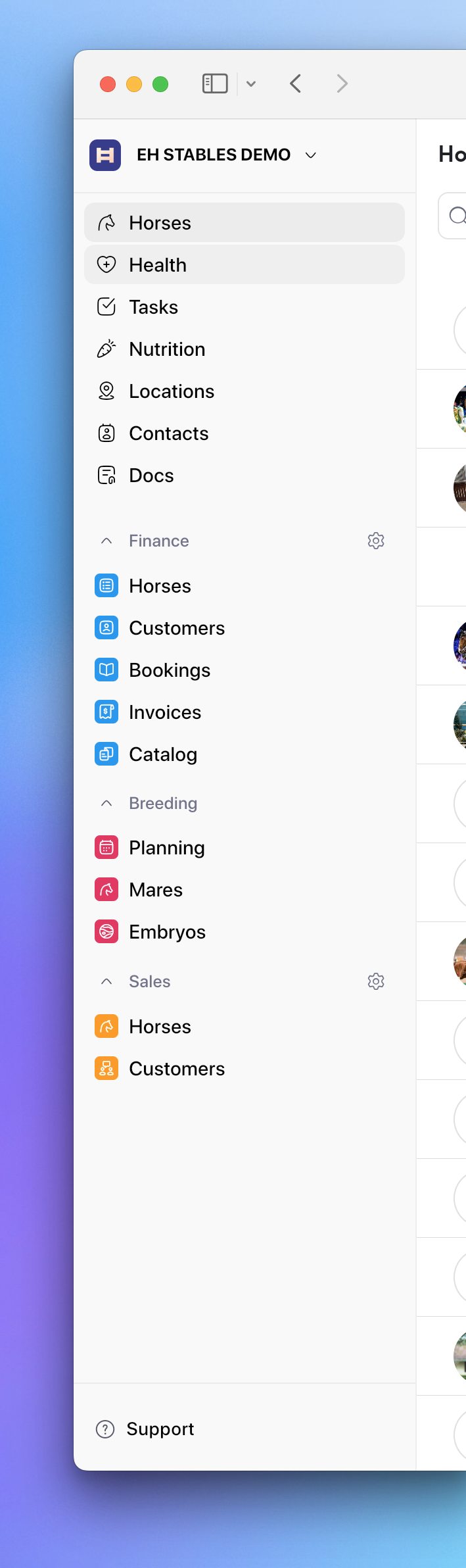
On web, everything is available in the side navigation panel. Some additional options such as Account Settings, My Profile and Notifications are available via the Popup menu when clicking on you Stable name.
On tablets, you can click on the top-left app switching icon. This will show all your available apps. When selecting an app, the interface and side navigation will change to this app.
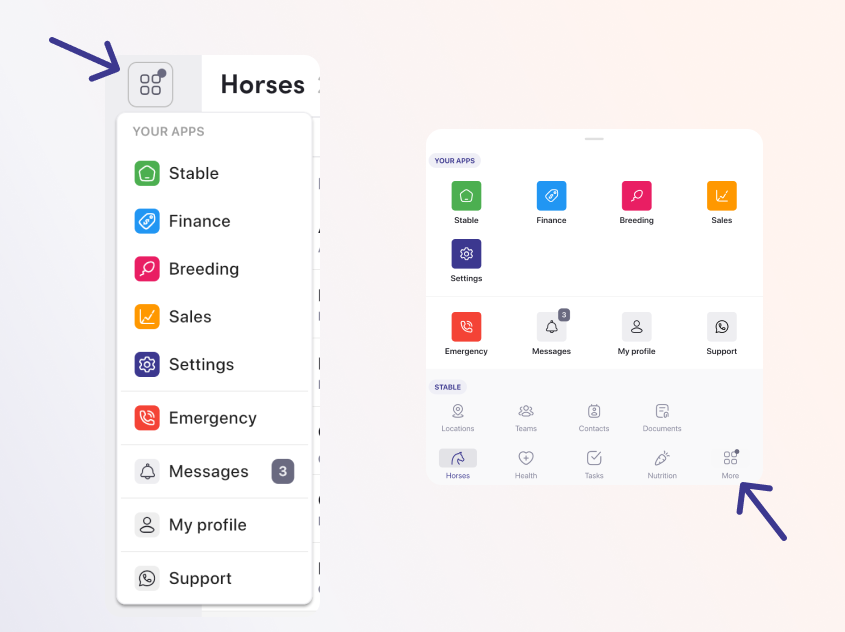
On mobile, you can navigate to all apps, settings and more via the left bottom button labeled as More. This will open a bottom navigation sheet.
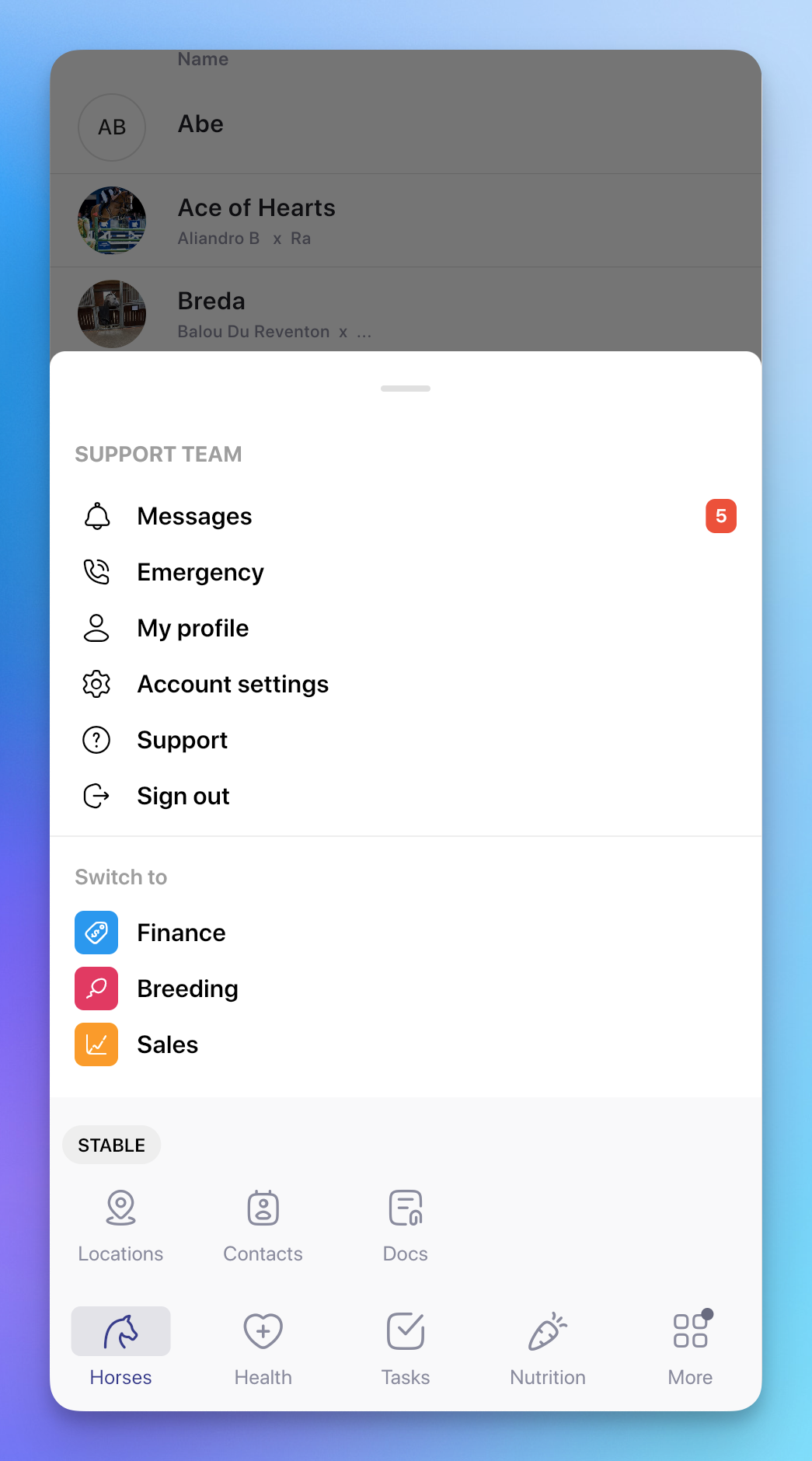
In case you need help, you can access the Help Center in Equihub. You can open the help center by clicking in the Support button. You"ll find this button in the left side navigation. On mobile, this is located in the More menu.
In the Help Center you can access different resources:
Our goal is the make Equihub as easy as possible, but sometimes some extra help is needed. In case the help articles don't solve your problem, we are always happy to support you via phone, email or video-call.
To change your personal preferences you can navigate to My profile.
These settings are personal to you and don't impact other users.
General settings
Task board settings
Notifications
Add team members: Quick action to add a new team member to your stable.
Emergency: Set quick to access emergency contact numbers. For example, the vet that needs to be called when there is a medical emergency.
Messages: All your health and event notifications and reminders.